How to Import JSON to Excel: 4 Methods from Power Query to Browser Tools
JSON files don't open directly in Excel. Unlike CSV, JSON stores data in a nested, hierarchical format that spreadsheets can't display without conversion. This guide covers four ways to get JSON data into Excel — from Excel's built-in Power Query to Python scripts and browser-based converters.
Pick the method that matches your situation:
| Method | Difficulty | Speed | Handles Nested JSON | Max File Size | Best For |
|---|---|---|---|---|---|
| Power Query | Low | Slow on large data | Yes (manual expand) | ~50 MB practical | One-off imports on Windows with Excel 2016+ |
| Python (pandas) | Medium | Fast | Yes (automatic) | Limited by RAM | Batch processing, large files, recurring workflows |
| Browser tool | Low | Fast | Partial (flattened to text) | Varies by tool | Quick conversion without installing anything |
Note: file size limits and feature availability may change. Check each tool's current documentation before starting a large conversion.
Power Query: Import JSON in Excel Without Code
Power Query is built into Excel 2016 and later. It reads JSON files, lets you expand nested objects into columns, and keeps a connection to the source file so you can refresh the data later.
The "From JSON" connector requires Excel 2016 or later. The Power Query add-in for Excel 2010/2013 does not include this connector. If you're on an older version, consider converting JSON to CSV using Python or a browser tool first, then importing the CSV.
Open the JSON importer
- Open a blank workbook in Excel.
- Go to Data → Get Data → From File → From JSON.
- Browse to your JSON file and select it.
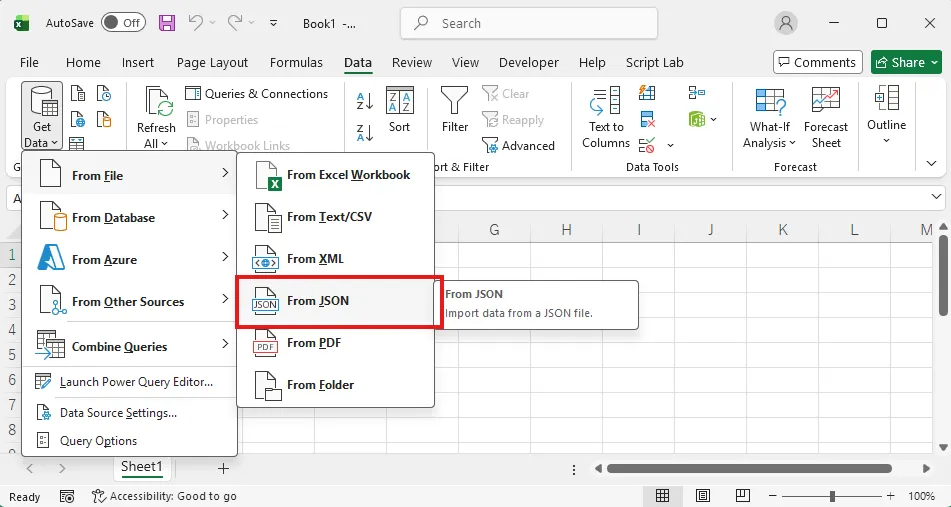
Excel opens the Power Query Editor with a preview of the JSON structure. At this point you'll see records, lists, or values — not a clean table yet.
Flatten nested JSON with the Expand button
This is where most people get stuck. Power Query shows nested objects as [Record] and arrays as [List]. You need to expand them into separate columns.
- Click To Table in the top-left corner of the Power Query Editor. Accept the default delimiter settings.
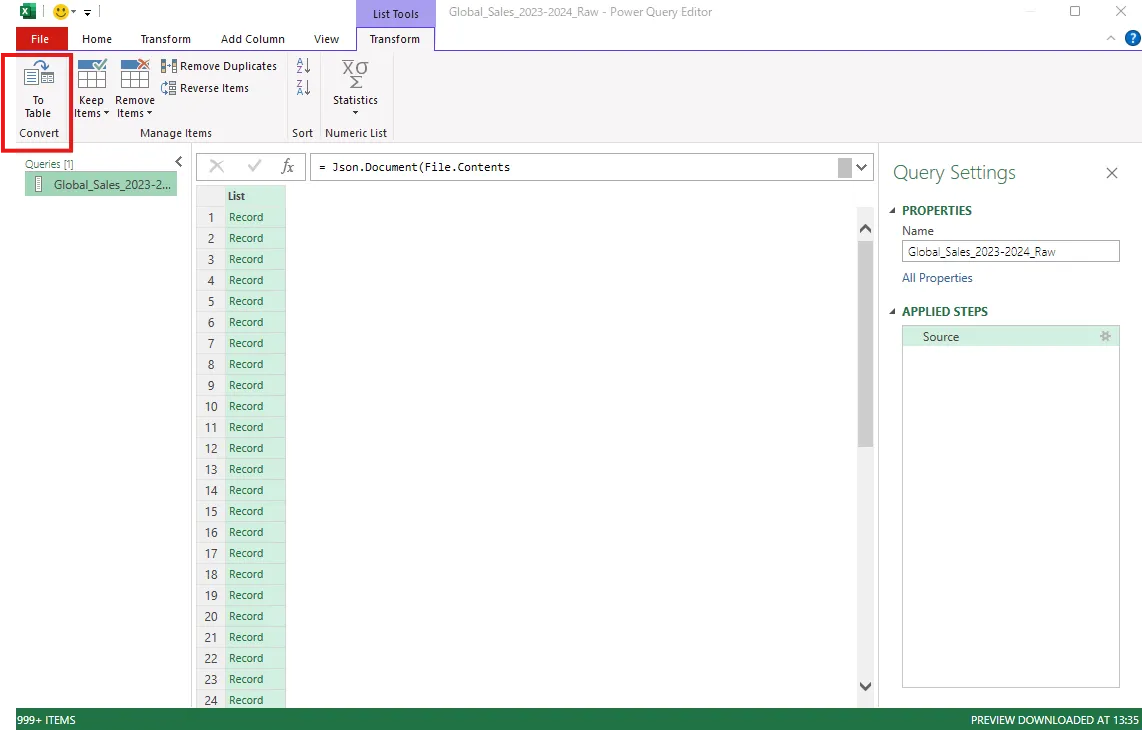
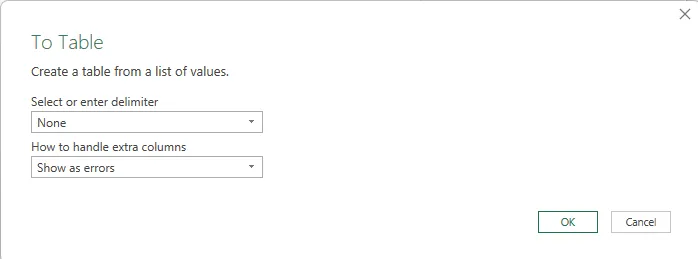
- Look for columns that show
[Record]or[List]. Click the expand icon (two arrows) next to the column header.
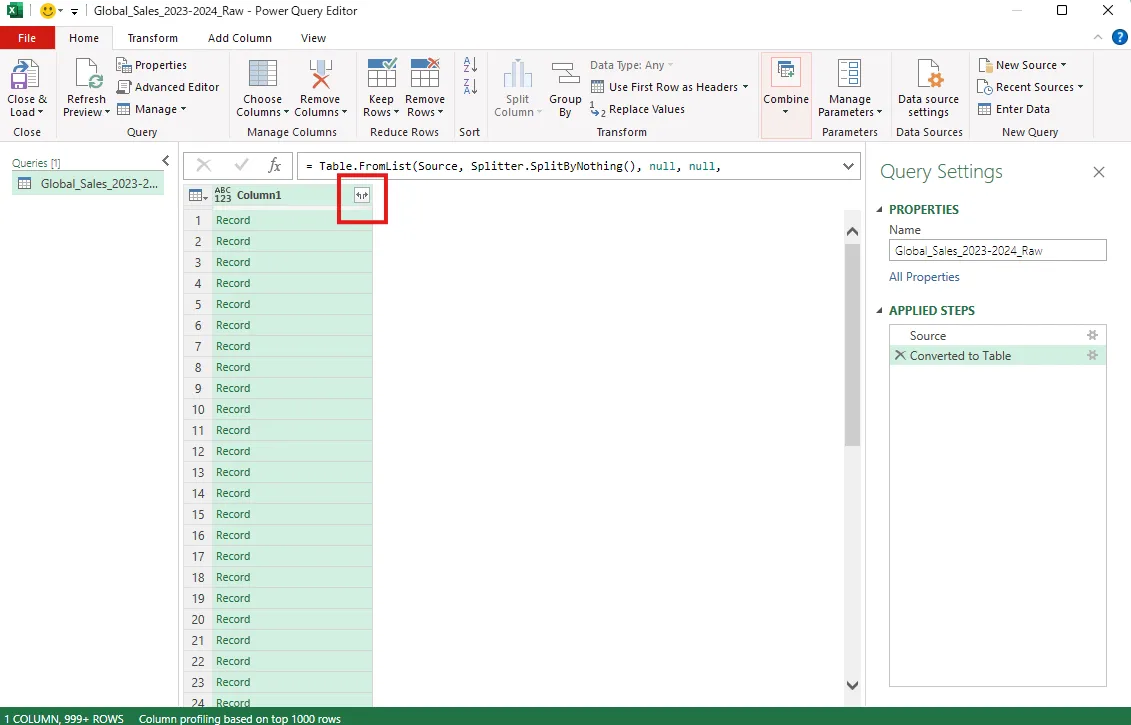
- Select the fields you want to keep and click OK.
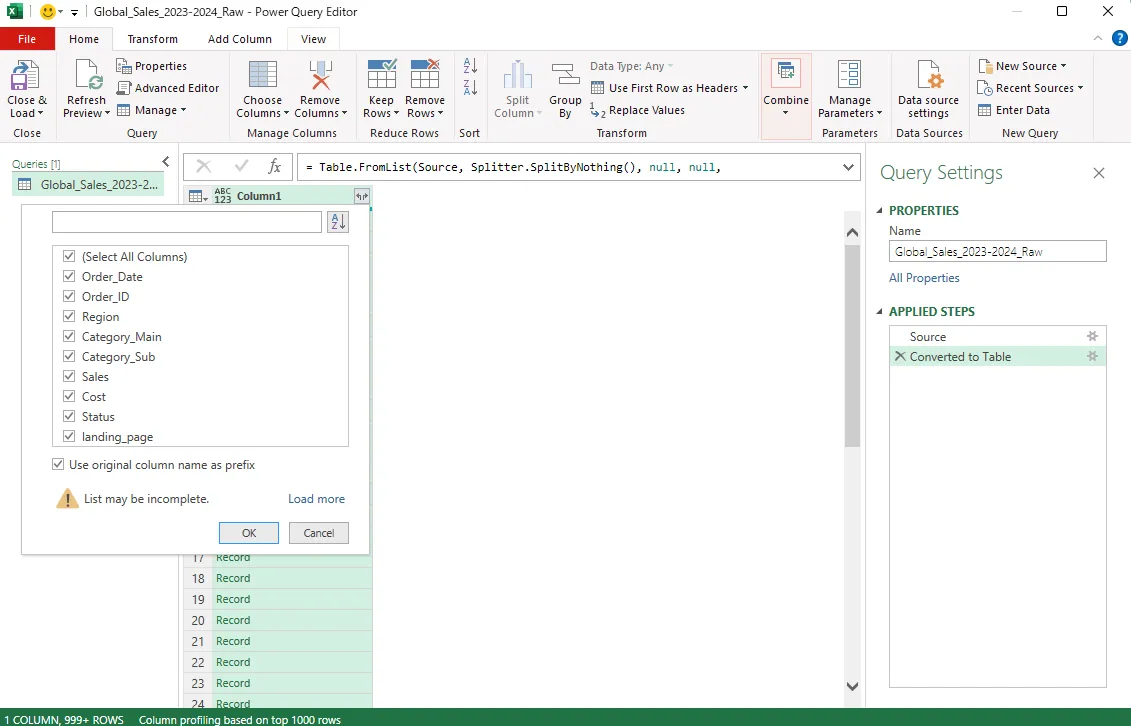
- Repeat step 2–3 for any remaining nested columns until all
[Record]and[List]entries are gone.
When you expand an array column, Power Query copies the parent row for each array element. If a customer has 3 orders, expanding the orders array produces 3 rows — all with the same customer data. This is expected behavior, but verify the row count after expanding to avoid counting duplicates in your analysis.
Load the table and refresh when the source file changes
- Click Close & Load in the top-left corner.
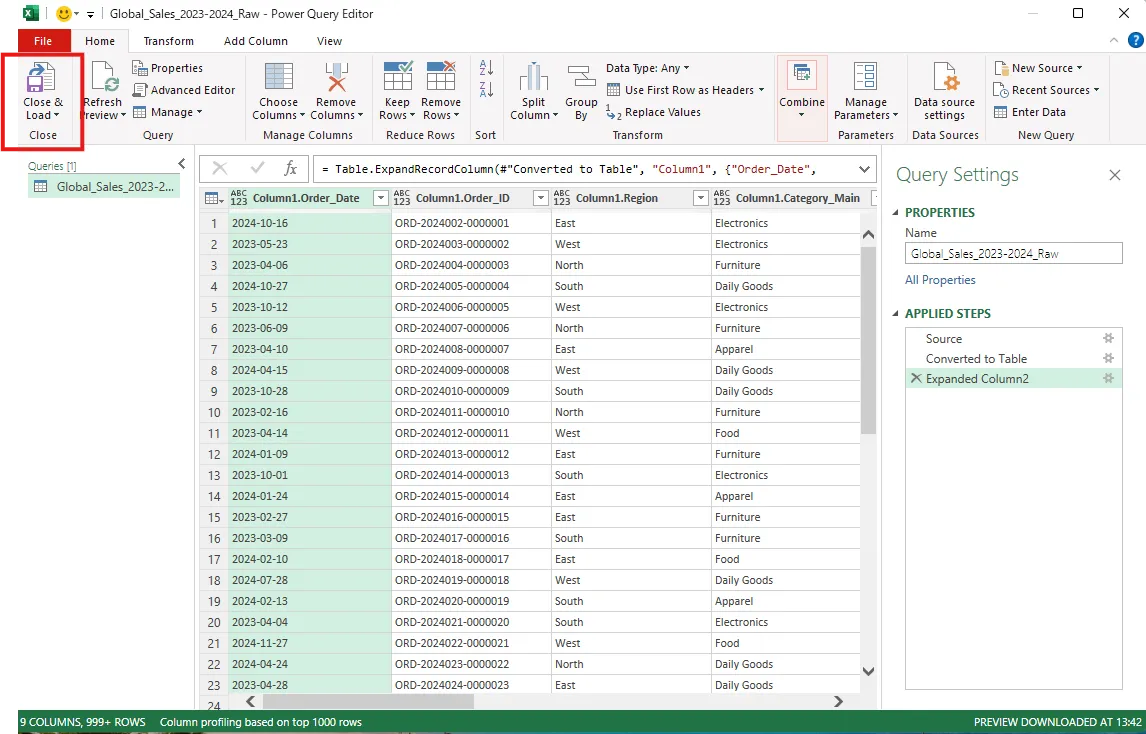
- Excel inserts the table into a new worksheet.
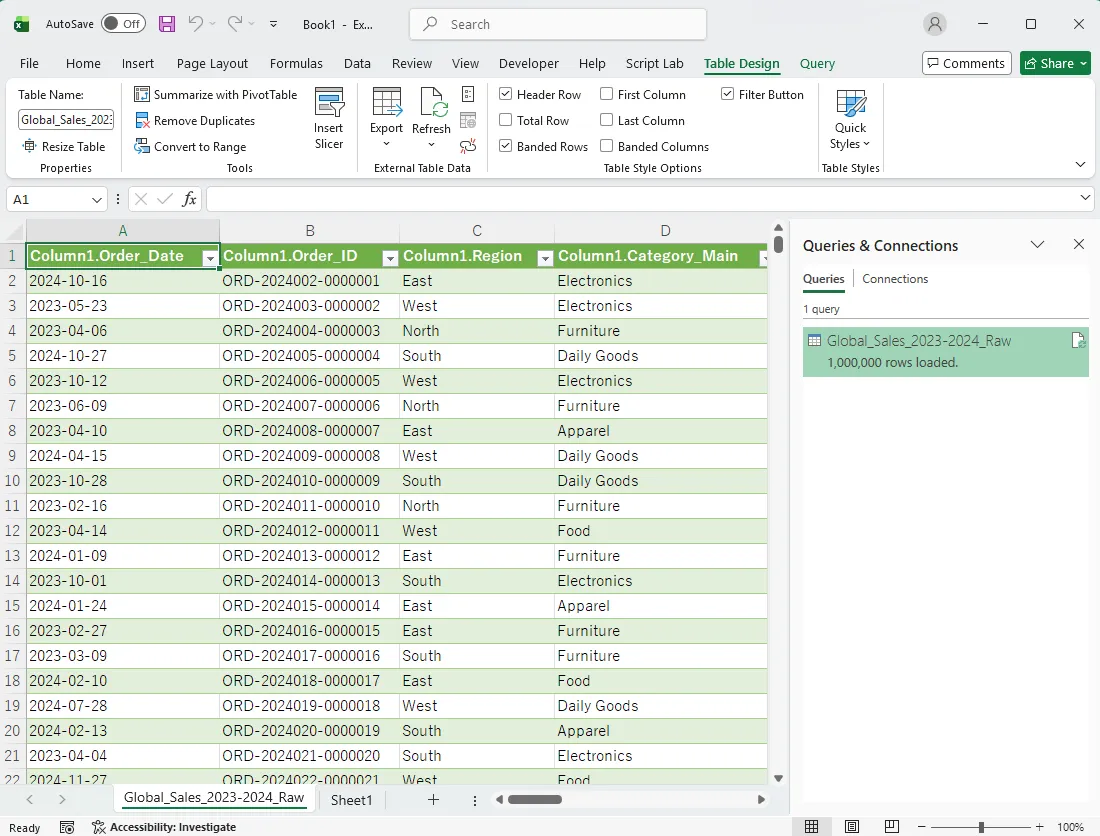
When the source JSON file is updated, right-click the table and select Refresh to re-import the data without repeating the setup. Power Query remembers all the expand and filter steps you configured.
Python (pandas): Convert JSON to Excel in 5 Lines
When Power Query struggles — large files, deeply nested structures, or dozens of JSON files to convert — Python with pandas handles it reliably. Install both libraries first if you haven't:
pip install pandas openpyxl
Basic conversion for flat JSON
import pandas as pd

df = pd.read_json("data.json")
df.to_excel("data.xlsx", index=False)
That's it for flat JSON (an array of objects with no nesting). The output is a standard .xlsx file that opens in Excel.
Handle nested JSON with json_normalize()
Flat JSON is rare in practice. API responses almost always contain nested objects or arrays. json_normalize() flattens them into columns with dot-separated names.
import json
import pandas as pd

with open("data.json") as f:
    data = json.load(f)

df = pd.json_normalize(
    data,
    record_path=["orders"],       # the nested array to flatten
    meta=["customer_id", "name"], # parent fields to carry over
    sep="_"                        # separator for nested column names
)
df.to_excel("orders_flat.xlsx", index=False)
This produces one row per order, with customer_id and name repeated on each row — the same expansion that Power Query does, but in a single command.
Batch-convert multiple JSON files
import glob
import pandas as pd

for path in glob.glob("exports/*.json"):
    df = pd.read_json(path)
    out = path.replace(".json", ".xlsx")
    df.to_excel(out, index=False)
    print(f"Converted: {out}")
This loop converts every .json file in the exports/ folder to .xlsx. For files exceeding Excel's 1,048,576-row limit, split the DataFrame with df.iloc[start:end] and write each chunk to a separate file.
Use a Browser-Based JSON-to-Excel Converter
If you don't have Excel installed, or you just need a quick one-off conversion, browser tools let you drag and drop a JSON file and download the result as Excel or CSV.
Tools that process data in your browser vs. on a server
There are two categories of online converters, and the distinction matters if your JSON contains sensitive data:
- Local processing (browser-only): The JSON file never leaves your computer. The conversion runs entirely in JavaScript or WebAssembly inside your browser. LeapRows JSON to Excel Converter (disclosure: built by the author) works this way — it loads JSON via DuckDB-WASM and generates the XLSX file locally.
- Server processing: The file is uploaded to a remote server, converted, and sent back. Faster for very large files in some cases, but your data passes through a third party.
For internal or confidential data, choose a local-processing tool. For public datasets, either type works.
When a browser tool beats Power Query
- You're on Linux, or a Chromebook where Excel's Power Query isn't available.
- The JSON is simple (flat or one level of nesting) and you just need a quick .xlsx download.
- You don't want to install Python or any other software.
The trade-off: browser tools typically flatten nested structures into text strings rather than expanding them into separate columns. If you need full control over how nested data maps to rows and columns, Power Query or Python is better.
Troubleshooting Common JSON Import Errors
"No data found" or only a few rows appear
The JSON file likely has a syntax error. A missing comma, an extra trailing comma, or an unclosed bracket will cause Power Query to silently truncate the import.
Fix: paste the file contents into an online JSON validator (search for "JSON lint") and look for the highlighted error. Common offenders:
| Error | Correct Form |
|---|---|
| Trailing comma in array | [1, 2, 3] (no comma at end) |
| Single quotes | {"key": "value"} (double quotes) |
| Unescaped special chars | Properly escape special characters in strings |
Columns show [Record] or [List] instead of actual data
You skipped the Expand step. Go back to the Power Query Editor (double-click the query in the Queries pane), find the columns showing [Record] or [List], and click the expand icon next to each column header.
Excel crashes or freezes on large JSON files
Excel's hard limit is 1,048,576 rows. Even below that limit, Power Query can run out of memory on files over 50–100 MB because it loads the entire dataset into RAM during transformation.
| Option | Best For | Difficulty |
|---|---|---|
| Python filter/aggregate before export | Many unnecessary rows | Medium |
Split JSON into chunks (jq command) | Very large files | Medium |
| Use tool without row limits first | Initial analysis, then export subset | Low |
Garbled characters or mojibake
The JSON file's encoding doesn't match what Excel expects. Most JSON is UTF-8, but if it was exported from a legacy system, it might be Shift-JIS, Windows-1252, or another encoding.
Fix: open the file in a text editor (VS Code, Notepad++) and check the encoding shown in the status bar. If it's not UTF-8, re-save the file as UTF-8 before importing. In Python, specify the encoding explicitly:
df = pd.read_json("data.json", encoding="utf-8-sig") # handles BOM
Inspect Your JSON Before You Convert
Spending 30 seconds previewing the JSON structure saves minutes of trial-and-error in Power Query.
Validate syntax first
Paste the file into a JSON validator or run this in a terminal:
python -m json.tool data.json > /dev/null
If the file is valid, there's no output. If it's broken, the line number and error message tell you exactly where to look.
Preview the structure with a JSON viewer
Open the file in VS Code (built-in JSON formatting) or an online JSON viewer. Look for:
- Top-level structure: Is it an array of objects
[{...}, {...}]or a single object with nested arrays{"results": [...]}? Power Query handles both, but the expand steps differ. - Nesting depth: Count the levels. One level of nesting is straightforward. Three or more levels may be faster to flatten with Python.
- Inconsistent keys: If some objects have fields that others don't, Power Query fills the gaps with
null. This is fine, but knowing it in advance prevents confusion.
Planning the flatten strategy before opening Excel makes the entire import smoother — whether you use Power Query, Python, or a browser tool.